










Duplicates by content
Find identical copies even when names or extensions differ. Review groups, filter by folder and see how much space you could recover.
Nexora Duplix for Windows
Find duplicate files and similar photos, videos or audio. Compare copies on your computer and decide which to keep.
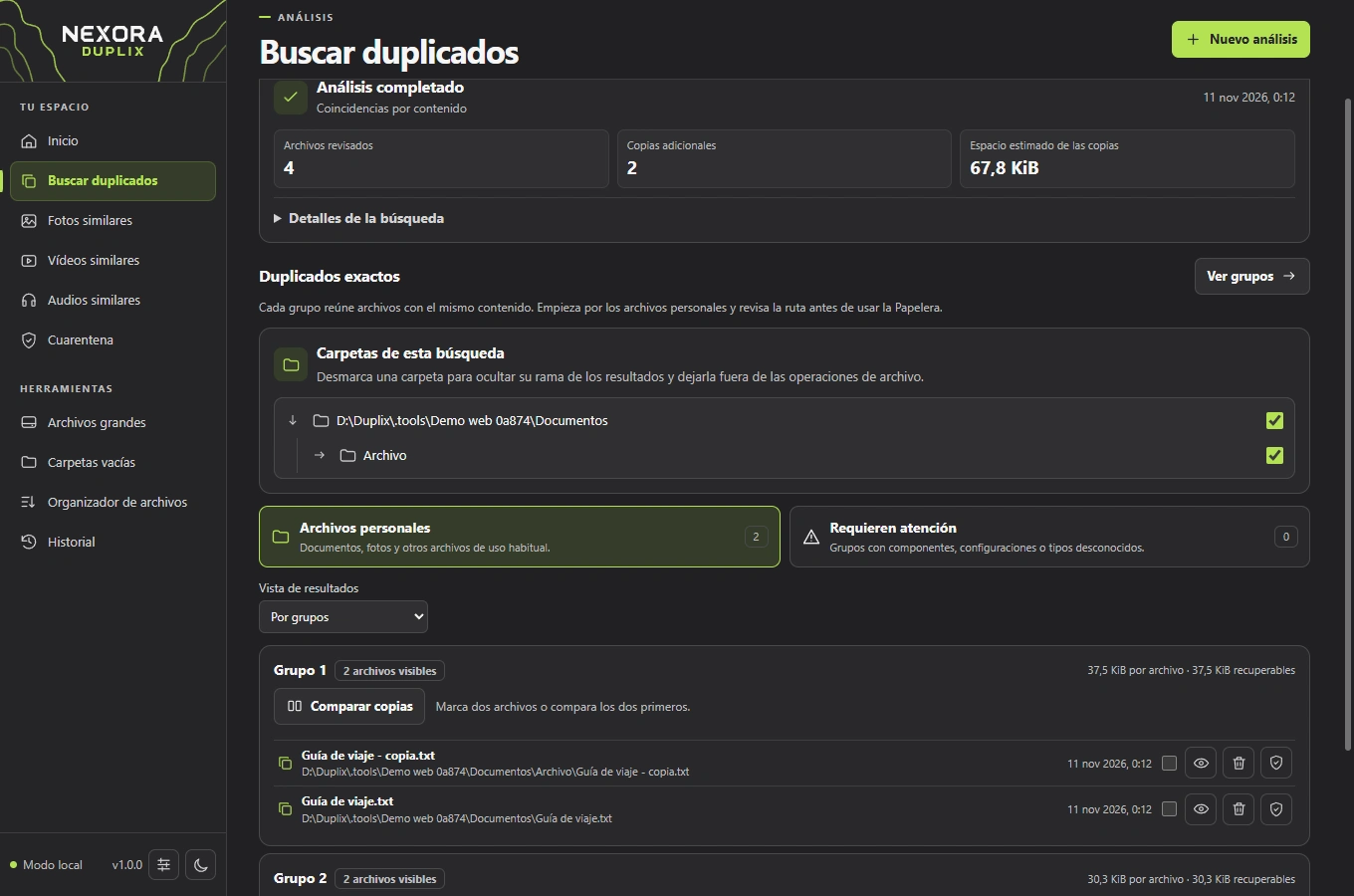
Select the folders you want to check. Scanning is read-only and you confirm which files are moved.
Find identical copies even when names or extensions differ. Review groups, filter by folder and see how much space you could recover.
Compare photos side by side with synchronized zoom, and play videos or audio before choosing which to keep.
Filter files by size, name or folder. Find empty folders and preview how your files would be organized.
Move copies to quarantine so you can restore them later. Review past scans in the app.
Nexora Duplix 1.0.0 screenshots with sample files. Select a thumbnail to keep that screenshot visible.
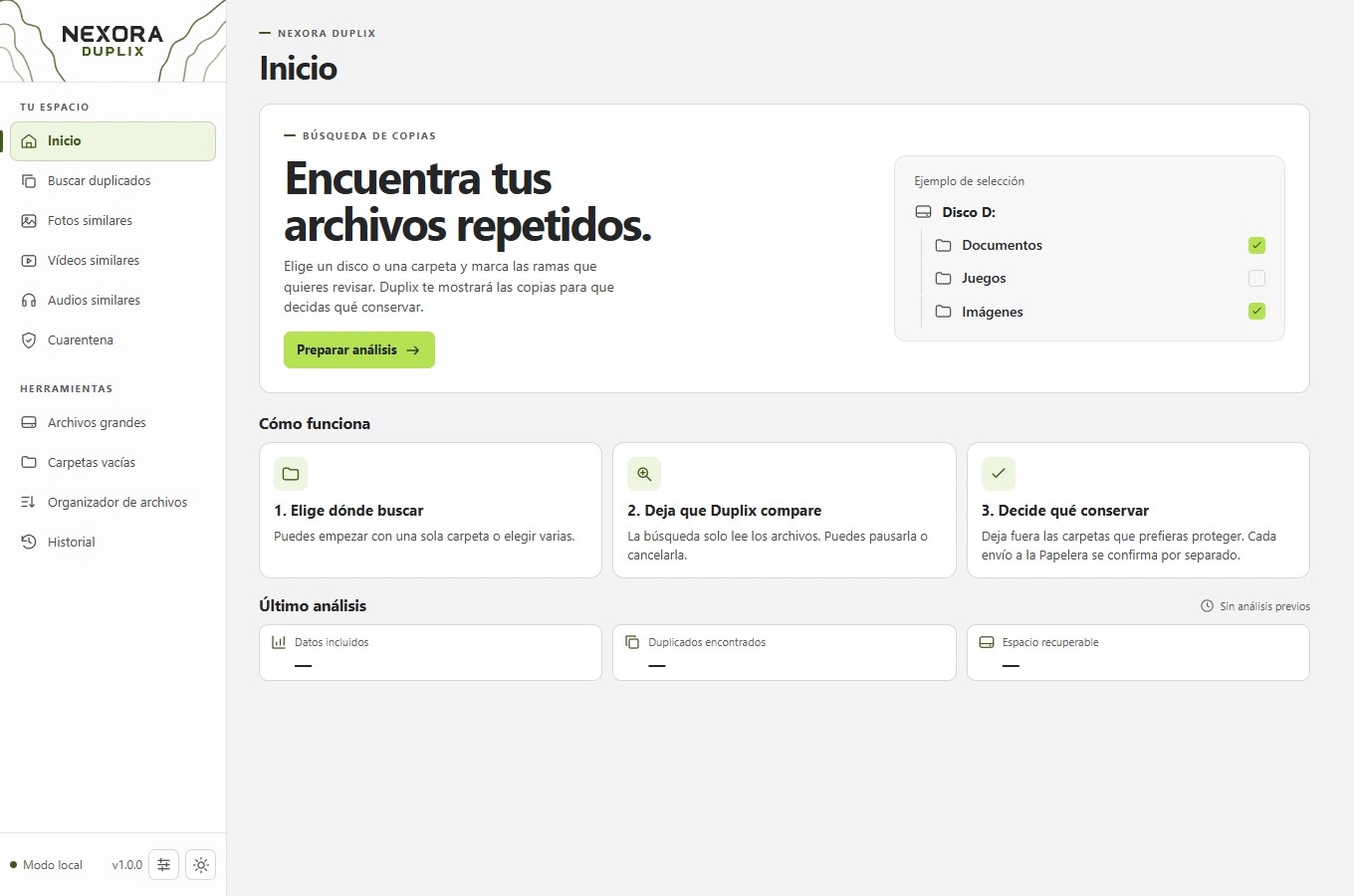
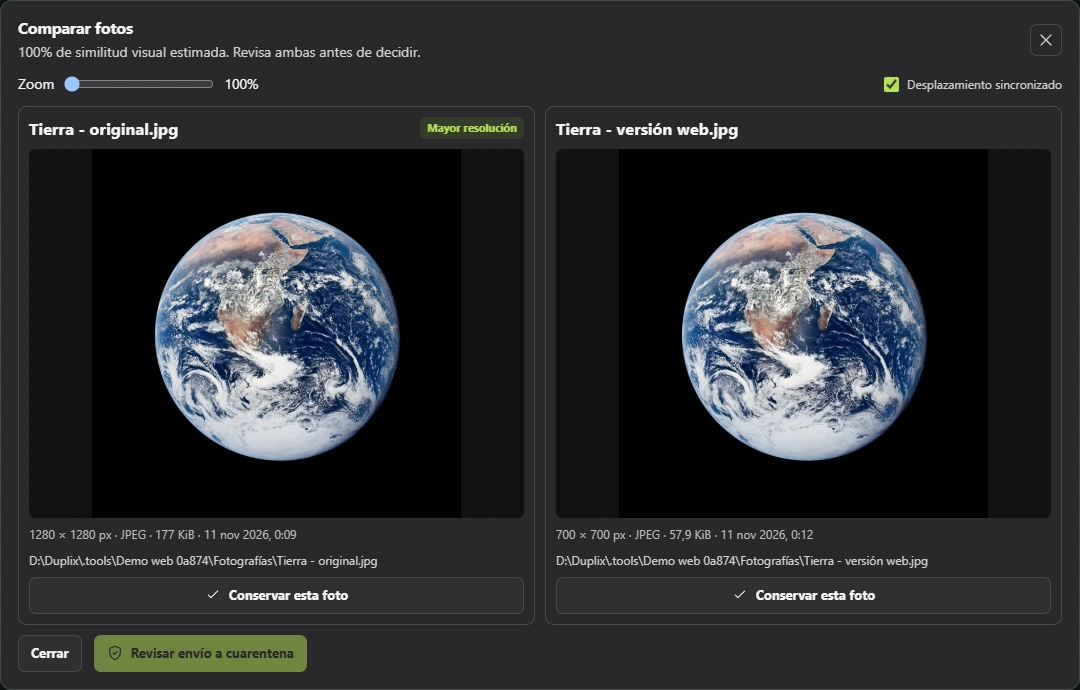
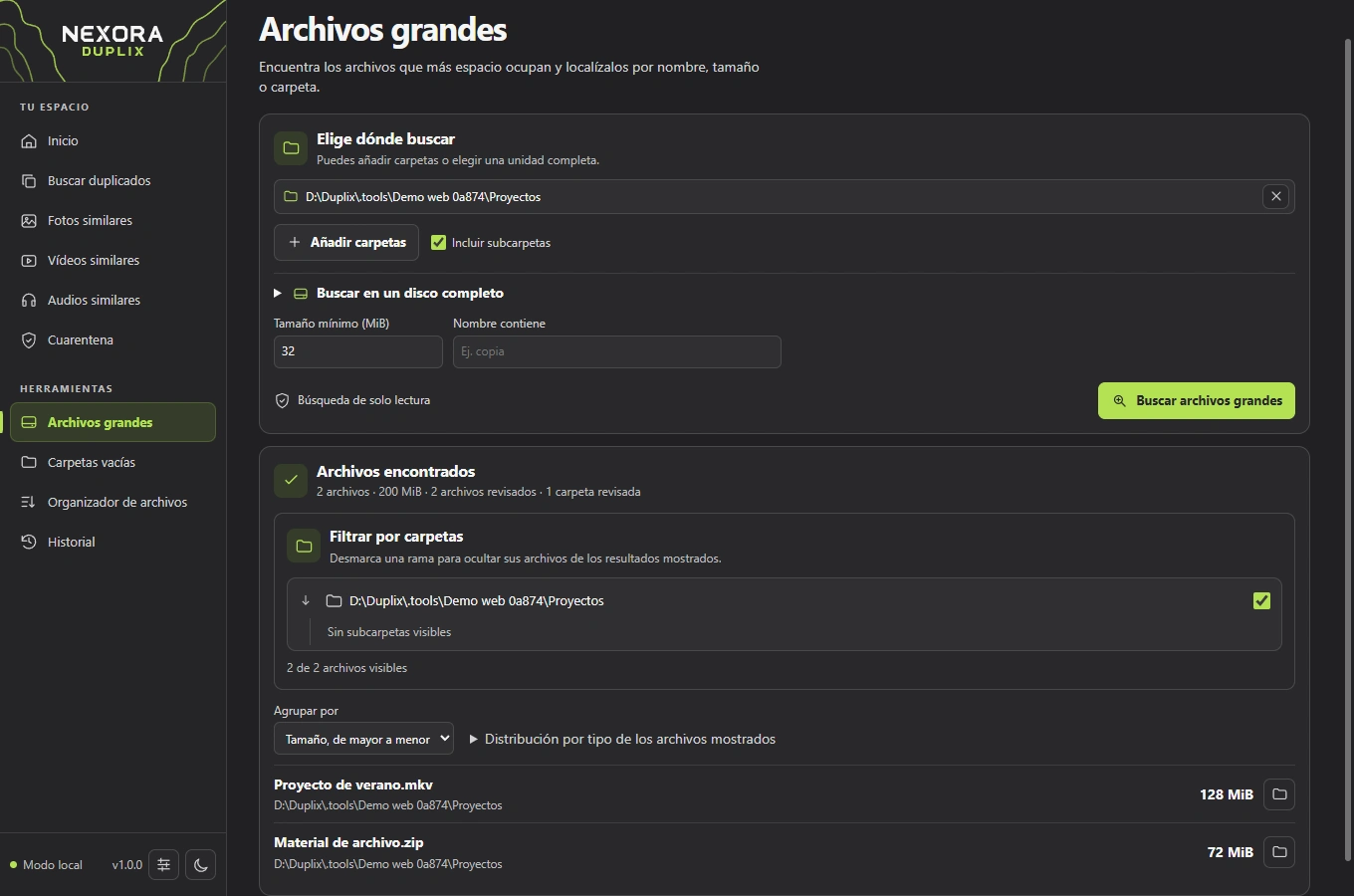
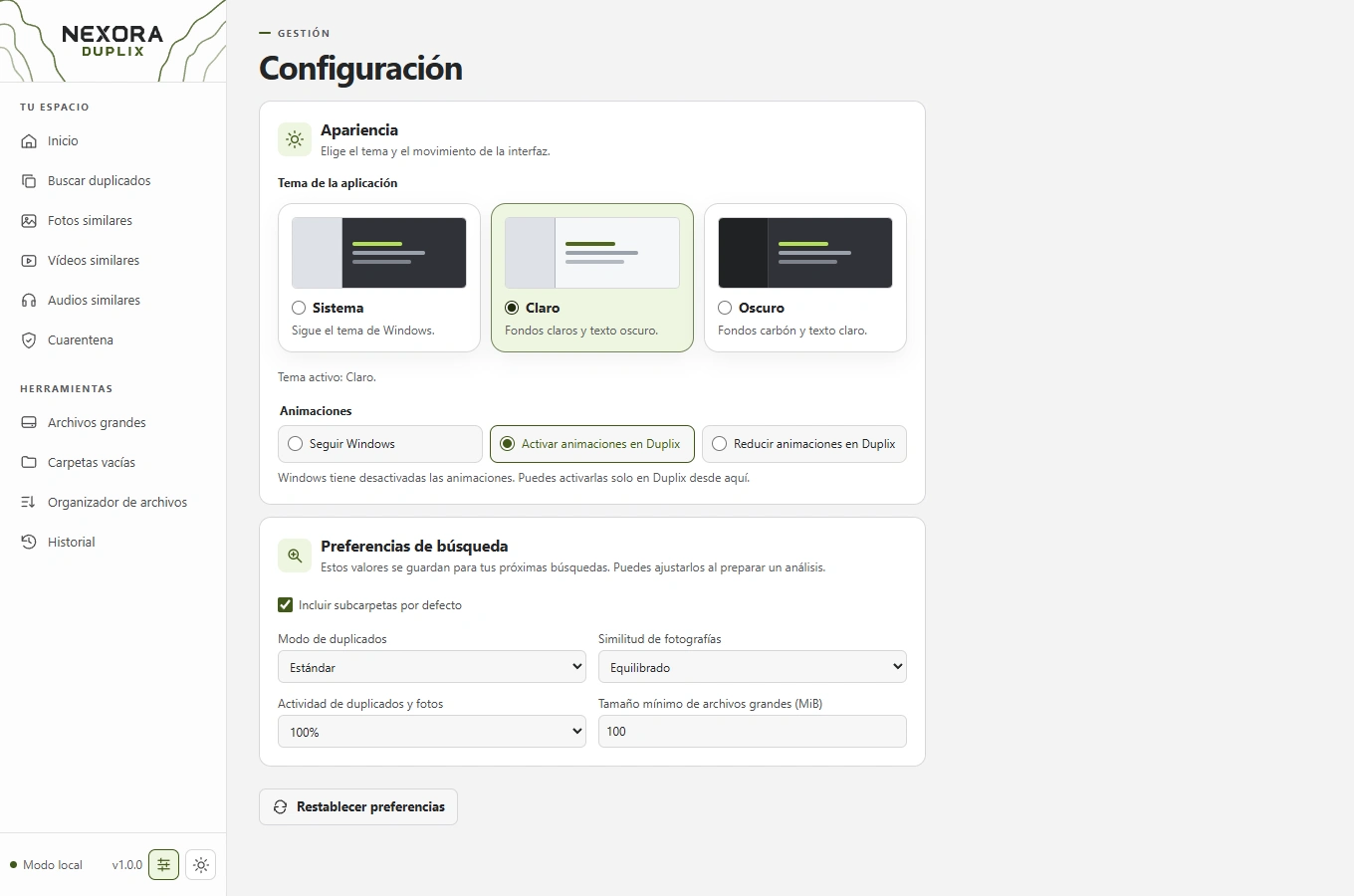
Step-by-step guides for version 1.0.0.
Scan your folders, compare two copies and decide which to keep.
View two photos side by side and compare resolution and detail.
Search by size and see what is taking up space.
Summary of the Nexora Duplix 1.0.0 license.
FFmpeg, libvpx, Opus and other components retain their own licenses. Mandatory statutory rights are preserved.
This Windows build is distributed without a digital signature.
Yes. Once downloaded, the installer runs offline and includes WebView2 if needed. After installation, find Duplix in the Start menu.
Duplix 1.0.0 has been tested on 64-bit Windows 11 on x64 PCs. Windows 10 validation is pending. See the installation requirements.
Yes. The license allows free use as an internal tool. Selling, charging for access or including it in a paid service requires written permission. See the terms of use.
In PowerShell, run Get-FileHash with the path to the installer and compare the result against the published SHA-256 checksum.
Yes. Standard mode groups files by content. Follow the guide to finding duplicates to compare paths and decide which copy to keep.
The scan reads the folders you select and processes results locally. Moving items to the Recycle Bin or quarantine requires confirmation.
Yes. Clear the folder in Included folders before starting the scan. Its subfolders are also excluded. See the guide to excluding folders.
Duplix can detect similar versions even in different formats. Use Similar videos or Similar audio and play both files to confirm the match.
The file still uses disk space. Quarantine lets you set a copy aside and later restore it to its original folder.
In quarantine, choose Restore with a different name. This keeps the existing file and the copy you are recovering.
The organizer previews the proposed paths. Review them and decide whether to apply the changes from File Explorer.
Open Large files, choose folders and set a minimum size. Then review the size-sorted list and filter results by folder.